Start with LeStallion’s active shortlist for 7 Best Portable Monitors for Laptops and Travel Setups. This here.now guide adds practical buying context around laptop compatibility, screen size, stand quality, glare, workflow, and packing durability before comparing individual portable monitors.
How to use this portable monitor guide
This support hub helps readers compare portable monitors with the laptop, cables, work surfaces, and travel habits they already have. It does not claim hands-on testing of every current product batch. Instead, it translates common specs into practical questions: will one cable work, will text be readable, will the stand hold, and will the screen survive the bag?
Portable monitors can be excellent for remote workers, students, consultants, creators, and anyone who misses a second screen away from the office. They can also become clutter if the setup depends on fragile adapters or unrealistic desk space. Use the sections below to compare convenience against real travel friction.
The best choice usually comes from matching the second screen to a repeated routine. A consultant reviewing dashboards in hotel rooms needs different brightness and stand behavior than a student extending a laptop in a dorm, and both need different packing protection than a creator carrying cameras and drives. Start with the bag, the laptop ports, the desk surfaces, and the work that actually happens away from the main office.
Also think about failure points before the first trip. If the monitor needs a special cable, store that cable with it. If the laptop battery drains quickly, plan charging. If a folio case wobbles, consider a compact stand. A portable display should shorten setup time and reduce window switching, not become the fragile piece everyone waits for before work can start.
USB-C Power and Video: The One-Cable Reality Check
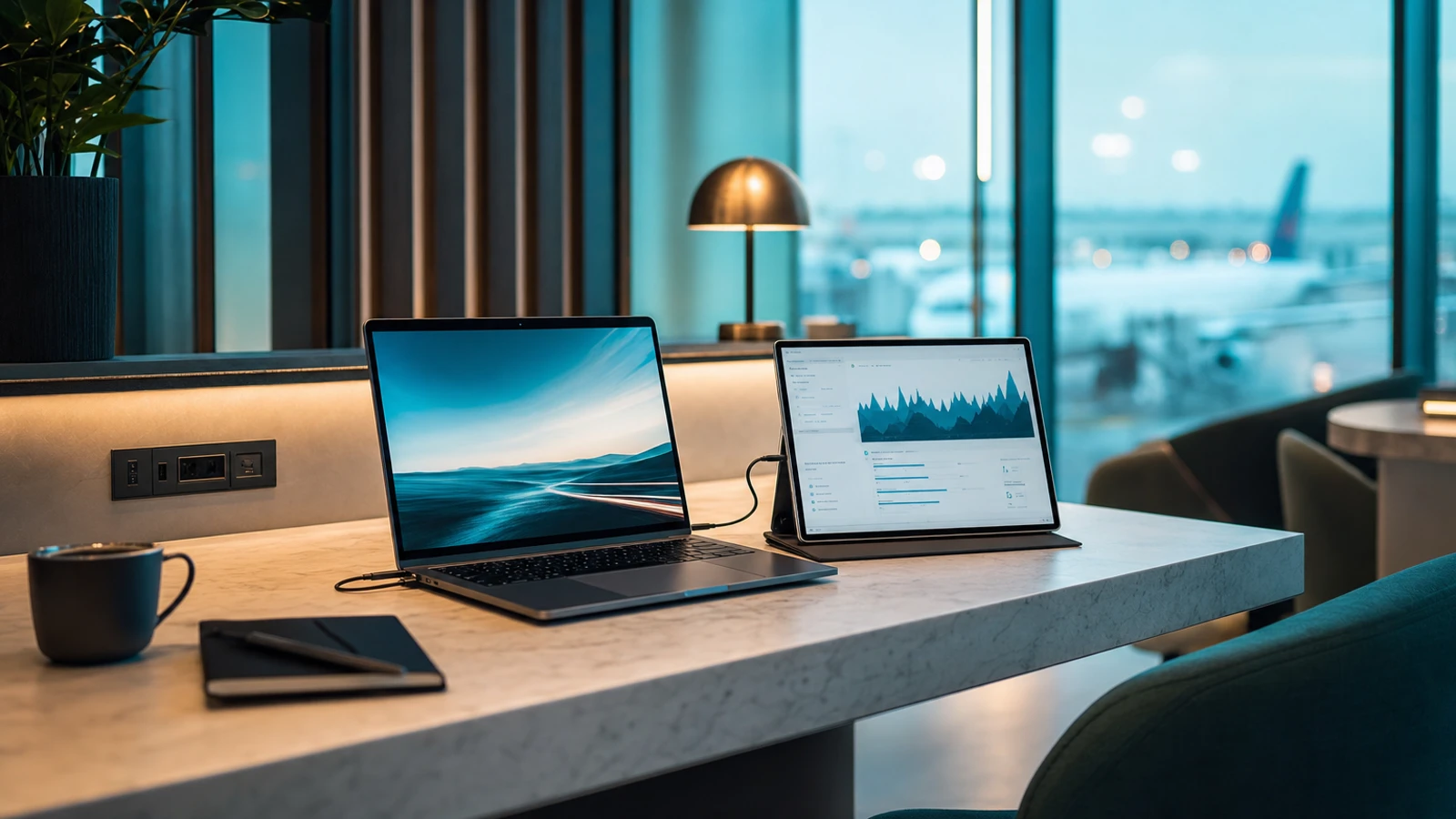
Confirm the port before the promise. A portable monitor may advertise USB-C, but the laptop port must support video output, not only charging or data. Look for DisplayPort Alt Mode, Thunderbolt, or clear manufacturer wording before assuming one cable will run everything.
Power draw changes the setup. Some portable monitors sip power from the laptop; others become dim, unstable, or hungry without a wall adapter. If travel days already strain battery life, check brightness levels and whether pass-through charging is available.
HDMI still matters. USB-C is convenient, but HDMI can rescue older laptops, mini PCs, game consoles, or meeting-room devices. A good travel display should make adapters predictable instead of forcing a last-minute cable scramble.
Cable quality is not optional. Thin mystery cables cause flicker, no-signal errors, or limited resolution. Keep the certified cable with the monitor and label it if the bag carries several similar cords.
Test at home first. Before taking a portable monitor on a trip, plug it into the real laptop, charger, hub, and power bank. One calm test prevents hotel-desk troubleshooting when the deadline is already close.
Screen Size, Resolution, and Scaling for Travel Work
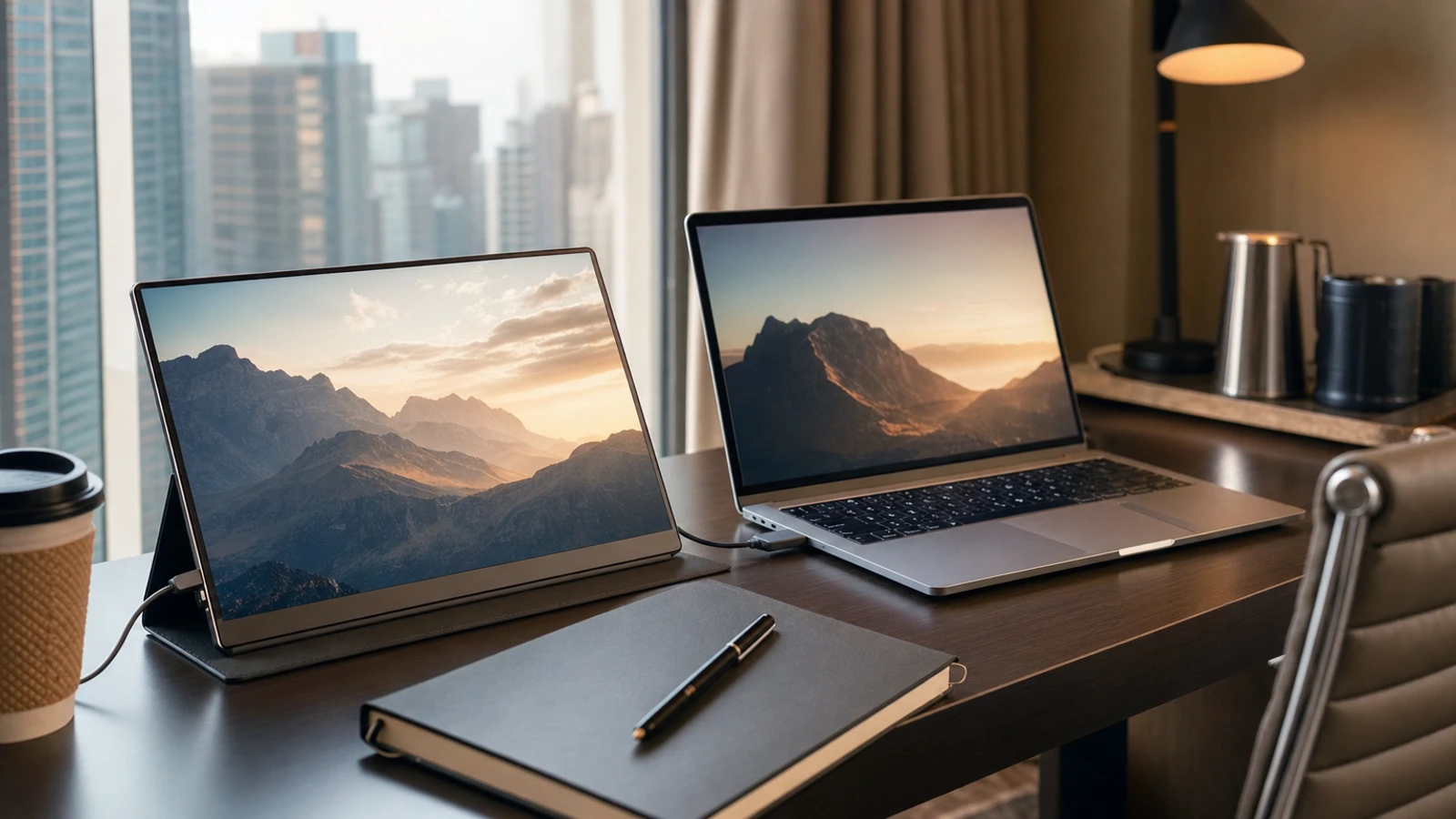
Size changes posture. A 14-inch display packs easily, while 15.6 or 16 inches can feel closer to a true second screen. Bigger is not always better if the monitor forces a cramped café table or awkward backpack fit.
Resolution should match eyesight. Full HD is often practical for spreadsheets, email, dashboards, and writing. Higher resolution can look sharper, but scaling may make menus tiny or reduce usable space if the laptop and portable monitor do not match well.
Aspect ratio affects tasks. Standard 16:9 works for presentations and video, while taller ratios can help documents and coding. Think about the work that actually travels: slide review, client dashboards, writing, editing, remote support, or school assignments.
Color accuracy depends on the job. Designers need better color coverage and calibration than someone reading notes beside a laptop. Do not pay for panel specs that do not improve the travel workflow, but do avoid washed-out screens that make long sessions tiring.
Desk distance is real. Portable screens often sit closer than office monitors. Choose a size and resolution that feel comfortable at arm’s length on a tray table, hotel desk, or coworking bench.
Stands, Cases, and Mounting Angles That Actually Hold Up
The stand decides daily comfort. A sharp panel with a floppy stand becomes frustrating fast. Look for angle range, wobble resistance, rubber feet, and whether the screen stays upright when a cable tugs slightly.
Folio cases vary widely. Magnetic folding covers look neat in photos, but some slide, collapse, or demand too much desk depth. If the case is the stand, it must hold the monitor at a useful working angle, not only protect the glass in a bag.
Separate stands add stability. A small folding tablet stand can make a portable monitor feel much better, though it adds another item to pack. Travelers who work for hours may prefer the extra stability over the thinnest possible kit.
Mounting can solve special setups. VESA-compatible portable displays, clamp arms, or tripod holes may help mobile studios, trade shows, or tiny offices. Check thread size and weight limits instead of assuming every accessory fits.
Cable direction matters. Side ports can collide with stands, walls, or neighboring devices. A stable angle is only useful if cables exit cleanly without bending sharply or pushing the screen sideways.
Brightness, Glare, and Hotel-Room Lighting Problems
Brightness numbers need context. A brighter panel helps near windows or in unpredictable rooms, but glossy glass can still reflect lamps and faces. Compare brightness, finish, and viewing angle together rather than chasing one number.
Matte is usually calmer for work. Matte screens can look less dramatic than glossy displays, yet they often feel easier during long document sessions. If the monitor is for productivity rather than movies, glare control may matter more than punchy contrast.
Hotel desks create odd light. Travel work happens under wall sconces, desk lamps, daylight gaps, and overhead lighting. A screen that tilts easily and stays stable helps dodge reflections without rebuilding the whole desk.
Brightness affects battery. Running a portable monitor at maximum brightness can drain a laptop quickly. If outlet access is uncertain, check whether the screen remains readable at moderate settings.
Eye comfort is a feature. Flicker behavior, blue-light settings, text clarity, and adjustable brightness all influence whether the second screen feels like help or strain after two hours.
Dual-Screen Workflow for Laptops, Tablets, and Road Trips
Start with the job, not the gadget. A portable monitor is useful when it removes switching friction: notes beside a video call, spreadsheet beside a browser, code beside preview, or a presentation beside speaker notes.
Arrangement should be repeatable. Set the monitor on the same side, keep the same scaling, and save display settings when possible. A repeatable setup makes travel work feel normal instead of experimental every morning.
Tablets add complexity. Some tablets can drive external displays cleanly; others mirror only, limit aspect ratio, or need specific hubs. Verify tablet behavior before relying on the monitor for a client meeting or class.
Road-trip entertainment is secondary. Portable monitors can serve movies or game consoles, but work buyers should still judge text, stand stability, power, and packing first. Entertainment value is a bonus, not the main productivity test.
Protect focus. A second screen can also create distraction. Use it intentionally for reference, communication, or controls rather than opening another feed that makes mobile work harder.
Packing, Durability, and Long-Term Portable Monitor Care
Thin panels need routines. Portable monitors are slim because they travel, but slim panels dislike twisting pressure. Pack them flat against a laptop sleeve or firm divider, not loose beside chargers and keys.
Screen protection matters. A folio cover, padded sleeve, or rigid compartment can prevent scratches and pressure marks. If the included cover feels weak, budget for better protection before the first trip.
Ports are fragile points. Repeated cable plugging can loosen ports over time. Avoid bending cables at the connector, and do not leave the monitor hanging from a cable while adjusting the desk.
Clean gently. Use a microfiber cloth and screen-safe cleaning habits. Harsh sprays, paper towels, and pressure at the panel edge can damage coatings or push dust into seams.
Retire the chaos kit. Keep one small pouch with the known-good cable, adapter, and charger plan. The best portable monitor setup is the one that comes out of the bag ready to work.
Compare portable monitors after checking the whole travel setup
Once cable compatibility, screen size, stand stability, brightness, and packing protection make sense, return to 7 Best Portable Monitors for Laptops and Travel Setups and compare the current product options with the laptop and bag they will actually travel with.
Final portable monitor fit check
Before buying, confirm USB-C video support, HDMI fallback, power needs, panel size, resolution, stand angle, case protection, warranty, and return policy. This here.now support guide follows the previous GitHub Pages guide on executive leather briefcases.